The Event Manager
The Event Manager is the heart of Toolfish. All web compare, macro, hotkey and other events can be added, organized, edited, run and deleted here.
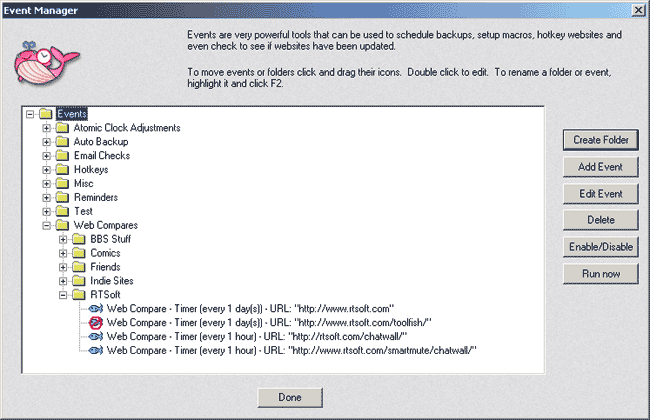
To move an event to another folder drag its icon. You can also drag and drop folders, and standard conventions like F2 to rename will work.
The name shown for each event is automatically generated based on what the event does, or it can be customized to be a little clearer and easier on the eyes.
Note: While using the Event Manager Toolfish is effectively paused. Until you hit Done, no hotkeys, events, etc. will be active.
- Create Folder - Add a folder that you can use to organize events. Empty folders get automatically deleted so make sure an event is in it.
- Add Event - Will create a new blank event. You must add the trigger(s) and action(s) yourself. (Don't worry, it's a breeze)
- Duplicate - Makes a copy of the selected event, handy when you want a variation of an existing event.
- Edit Event - Change an existing event.
- Delete Event - Poof, kills an event(s). There is no undo so be careful. If no event is highlighted, nothing will happen.
- Disable Event - This toggles an event to be active or inactive. Inactive events are not run.
- Run Now - Force the event to be triggered. This won't change the normal scheduling and is very useful to manually make sure an event is working right or to quickly check a bunch of websites on a whim. (TIP: If you highlight a folder and click Run Now, the entire group of its contents will be run)
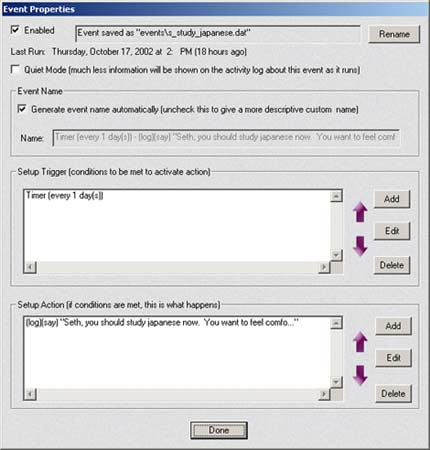
The Event editor is where the magic happens. If you have just clicked "Add Event" then there will be no triggers or actions, you need to add 'em.
About filenames: Every event is stored in a separate file. These files all reside in your \Events directory. (Relative to your main Toolfish directory)
If you erase an event file or add an event file manually with file explorer and restart Toolfish, the event(s) will be added or removed automatically. This makes it easy to backup events or send a useful event to a friend.
- Enabled checkbox - If not checked the event will not run. (Can also be set by using the Event Manager's enable/disable toggle button)
- Rename - You never have to rename the filename of an event, but the default filenames are a bit cryptic and if you need to copy a certain event using file explorer for some reason this makes it much easier.
- Quiet Mode checkbox - This causes the event to run without notifying you on the log and most triggers/actions to operate with reduced status messages. If an event runs every minute, you really don't want its status messages to flood the activity log. The activity log will still notify you when something at least semi-important happens in the event, like a page being updated.
- Generate event name automatically - If this is checked Toolfish will automatically generate a name for the event based on what it does. If you uncheck it you can specify your own (and probably easier to understand) description.
< Triggers >
With no trigger your event will never be automatically run. This probably isn't what you want! To remedy the situation you need to add a trigger.
If you add MORE than one trigger, each trigger has to test to 'true' for the actions to be run. (For instance, you can combine "run every hour" with "must be between 9 and 5 PM" with "if someone has used the computer in the last 5 minutes")
Click here for a list of triggers and their descriptions.
< Actions >
If all triggers test 'true' then the action(s) will be run. If no actions exist, nothing is going to happen. Not good.
Actions are run on their own thread, sequentially. So the order of actions may be important to you. Use the UP/DOWN arrows to change the order.
There is really only one thing you need to know - certain actions such as the "Web Compare" action are conditional - if the page isn't new, it aborts and the rest of the actions are not run, so make sure you list it first on the action list if you're using a Web Compare, Email Check or Site Monitor action. (this is all handled for you when you use a Wizard to set it up)
Click here for a list of all actions and their descriptions.